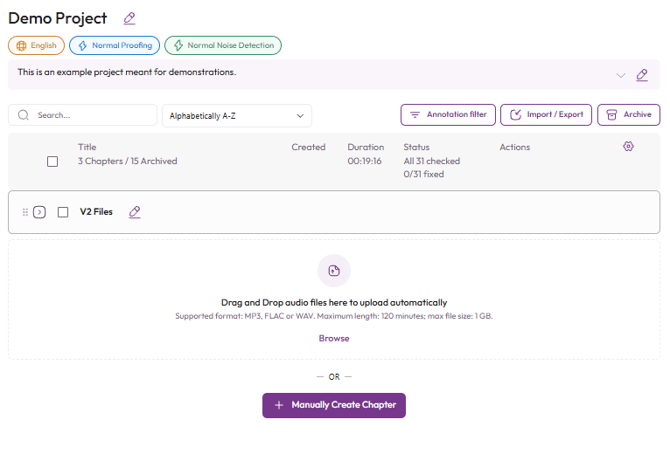
If you're working on a project with a large number of audio files, you can organize them into Sections to keep your project dashboard tidy and make your files easier to navigate.
Follow the steps below to create a Section.
1. Select the files you'd like to group:
Use the checkboxes next to each audio file to select the files you'd like to organize into a Section.
You can select files individually or use the Select All checkbox at the top of the list to select every file.
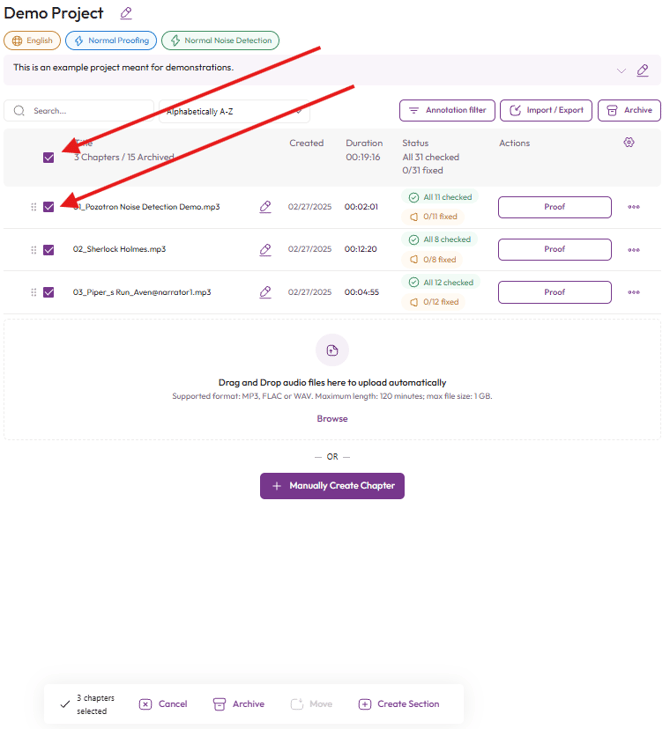
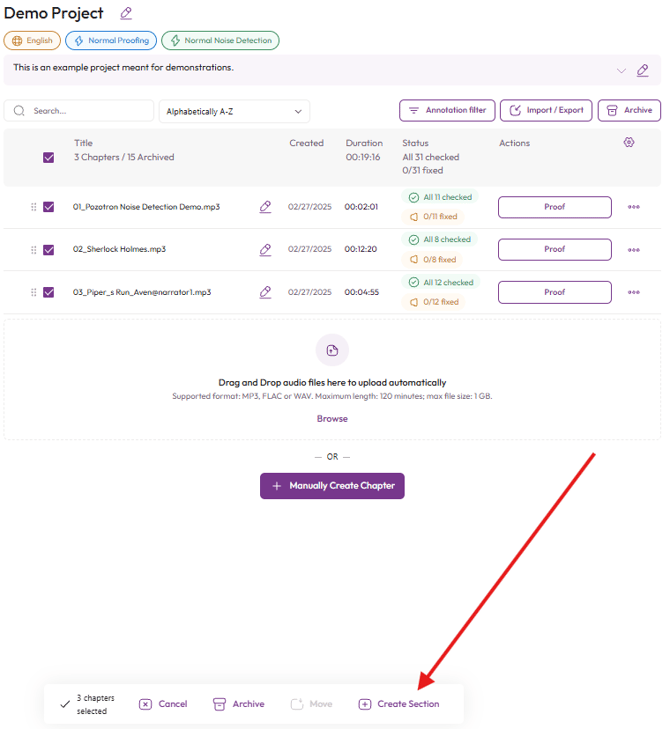
2. Select "Create Section" on the bottom options that appear
Once you've selected your files, a toolbar will appear at the bottom of the screen.
Click Create Section to group your selected files together.
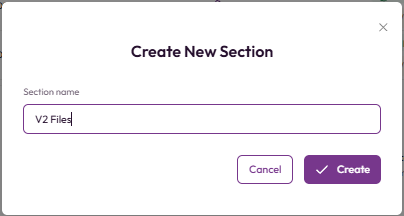
3. Name your Section
A pop-up window will appear, prompting you to enter a name for your new Section.
Choose a descriptive name that will help you easily identify the files within it, then click Create.
4. View your organized files
That's it! Your selected audio files will now be grouped into their new Section, making it easier to navigate and manage your project.